DeX AI
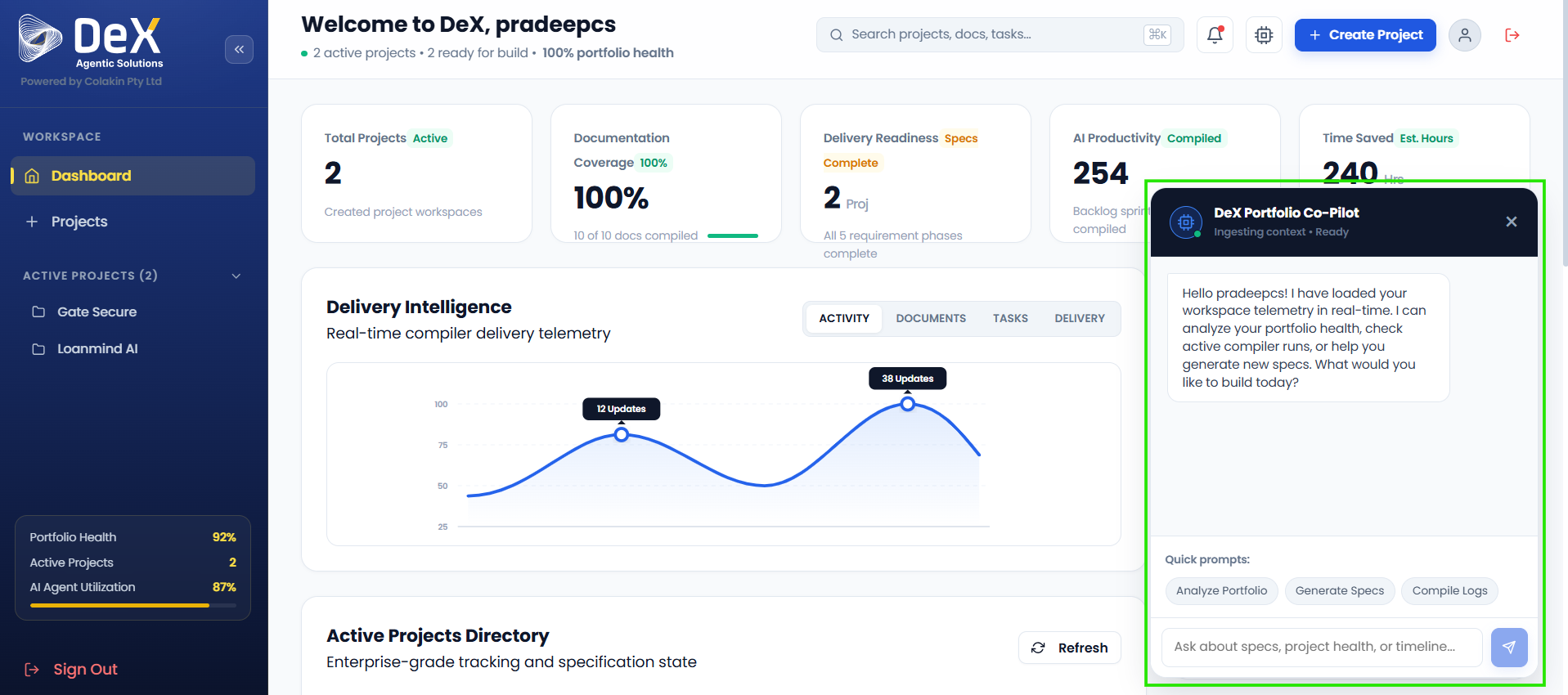
DeX AI is the integrated AI assistant built directly into the Dashboard. It provides contextual, intelligent support by analyzing your portfolio health, generating specifications, compiling delivery logs, and surfacing real-time telemetry — all without leaving the workspace.
💡 Think of DeX AI as your always-available delivery expert — ready to answer questions, surface insights, and take action on your behalf, right inside the platform.
What Can DeX AI Do?
DeX AI is capable of performing a wide range of delivery intelligence tasks:
| Capability | Description |
|---|---|
| Analyze Portfolio | Review health scores, coverage gaps, and project status across your entire portfolio |
| Generate Specs | Trigger or refine BRD, SRD, and FSD generation based on your project inputs |
| Compile Logs | Aggregate build logs, deployment records, and activity history |
| Answer Queries | Respond to natural language questions about sprint progress, documentation coverage, and delivery status |
| Surface Telemetry | Display real-time metrics across Activity, Documents, Tasks, and Delivery |
How to Use DeX AI
Step 1 — Open the Assistant
- Locate the "Ask DeX AI" button at the bottom-right corner of the Dashboard.
- Click the button to open the AI assistant window.
Step 2 — Choose Your Interaction Method
You have two ways to interact with DeX AI:
Option A — Quick Actions
Select a pre-built Quick Action for immediate insights:
| Quick Action | What It Does |
|---|---|
| Analyze Portfolio | Generates a summary of portfolio health, active project count, and coverage gaps |
| Generate Specs | Initiates or refines document generation for the current or selected project |
| Compile Logs | Aggregates recent build, QA, and deployment logs into a readable summary |
Option B — Custom Query (Natural Language)
Type your own request into the input field for more specific or contextual assistance.
Example queries:
- "Show sprint progress for the LoanMind project"
- "Summarize documentation coverage across all active projects"
- "What tasks are still pending in Phase 3?"
- "Which projects are ready to build?"
- "How many hours has DeX AI saved this week?"
Step 3 — Review the Response
- DeX AI will display its response in the assistant window, including:
- Real-time data pulled from your active projects
- Actionable guidance or next steps
- Links or shortcuts to relevant phases or documents
Step 4 — Continue the Conversation
- Use additional Quick Actions or type follow-up queries to drill deeper.
- The assistant maintains context within your session, so you can ask follow-up questions naturally.
Tips for Getting the Best Results
- Be specific — Instead of "how are my projects?", ask "what is the documentation coverage for the LoanMind project?"
- Use project names — Reference specific projects by name for more targeted responses.
- Combine Quick Actions with custom queries — Start with a Quick Action to get a broad overview, then type a specific question to drill into details.
- Ask for next steps — DeX AI can suggest what phase or action to take next based on your current project status.
✅ DeX AI is always available while you're working in the Dashboard — no need to switch tools or open external applications. It's your on-demand delivery intelligence layer, built into every session.